Showing posts with label Exchange. Show all posts

January 13, 2010

A Customized Get-Mailbox... and more.

I like to make things easy for myself when possible. That being said, I also spend a good amount of time writing scripts that will help with that. Therein lies the rub. Is it worth my while to spend hours getting a script just right? The short answer, Yes I think it is. The somewhat longer answer and reasons behind it, is a topic for another day.

Often when I'm troubleshooting user issues, I'll need to get the user's mailbox information, usage statistics, and frequently their OWA settings. Getting this information from the Exchange Management Shell will require me to enter three cmdlets (once I figure out what the user's alias is). I can never remember to use the -ResultSize Unlimited switch until it's too late, nor can I remember to use the -ANR (Alternative Name Resolution) switch so I can search for FirstName, LastName, Alias, PrimarySMTPAddress, etc.

My solution... write a script that calls Get-Mailbox with the -ResultSize and -ANR switches built into it. But why stop there? The script will prompt for which of the 19 Michaels the search returned, then display full Get-Mailbox, Get-CASMailbox, and Get-MailboxStatistics information for the requested user. Now I have all the information I typically need to troubleshoot a user problem.

Are we finished? Nope. Why not turn this script into a function and load it in our Powershell $Profile so there is no need to dot source it? Sure, now we can run it no matter what our current directory is. Now we're talkin' right?... or are we? The problem now is... I'm not the only Exchange Admin in my group, and what if he thinks my script is cool and wants to use it? Ah... but we can handle that too! Yes indeed, instead of loading the function in Powershell's personal profile (see Understanding Powershell Profiles), we can add it to the machine profile instead. Now any user that logs onto the box and runs Powershell will have the function pre-loaded and available for use during their session.

The Home Stretch
This is all good stuff, and is working like a charm. We get to thinking about this a little more and realize... "Hey, I can only use this awesome new script on the server that I'm logged onto." Not really a problem as the script can access information from other machines. However, what if my buddy Bryan wants to use the script but he's logged onto one of the Hub/CAS servers and the script lives on the Mailbox Cluster? Several options here. The one we have been using is...

...you guessed it, another script! This script is just a simple file copy script to distribute the machine profile to the other Exchange servers in our environment. The script will check the current server and will, after getting confirmation from the user, copy the local machine profile to the other Exchange servers. This works well for us and provides a consistent environment while working in Powershell on any of our Exchange servers.

Note: For those of you who are running Exchange 2007 SP2, you can install Powershell v2, which gives you the import-module cmdlet, allowing you to locate your functions on a network drive and load them from a share. Change the function in one spot, and all of your servers are up to date at the next Powershell session login. Don't forget to name the file you store your functions in with a .ps1 extension, the import-module cmdlet won't allow .txt extensions.


.end

more...

August 21, 2009

What's your favorite PICKUP line?
[C'mon, everyone has one, so fess up!]

Ours (at least in the office) is:
copy serverstatus.eml \\myTransportServer\Pickup

Do you have a need for an easy method of sending a message from within your Powershell scripts? Do your automated procedures report their results to you via email? Do you want them to? Details? Summaries? Have you used the pickup folder to send messages from your monitoring or mailbox processing scripts? If not, you should be. Read on to see how easy the process can be, especially for you Exchange Admins.

Here at ITEC, we host mailboxes for a few campuses and SUNY entities. Automating procedures helps us to provide consistent, and faster service to our customers. Scripting as many procedures as possible helps in standardization and minimizes the chance for error. However, automated processes can sometimes go on without monitoring and without an administrative eye watching over them. Notification from these automated procedures is sometimes critical to system health as well as customer satisfaction. An easy way to use your Exchange environment to deliver status messages and reports is to use the PICKUP folder on your Exchange Transport server.

First, we should create a share that points to the pickup folder on one of your transport servers to use as your drop folder for system status messages.


Format your message following RFC-822 standards as shown below, naming it with an .eml extension, then copy it to the pickup share to be delivered by the Exchange transport server. We use a Powershell function (discussed later in this article) that we've written to make our mailer procedure transportable, but you can easily put the code inline in your reporting script.

From:
To:
S
ubject:

Message body here. (Content from your report file)


Make sure there is a blank line between the Subject: line and the start of your message body... that's all there is to it. Exchange monitors the pickup folder for new messages and processes them as long as they are formatted correctly. We use a script to build the output file with very simple Powershell write-output cmdlets.


Building the email message takes no more than the few Powershell lines shown below. After the output .eml message file is created, it's simply a matter of copying the file to the pickup share for processing.


$Msg = "MyMessage.eml"
$MsgBody = Get-Content C:\temp\MyReport.txt
$MsgDisclaimer = "Some company mumbo jumbo..."
write-output "From: $fromaddr" out-file $Msg -encoding ASCII
write-output "To: $toaddr" out-file $Msg -encoding ASCII -append
write-output "Subject: $subj" out-file $Msg -encoding ASCII -append
write-output "`r`n" out-file $Msg -encoding ASCII -append
write-output " -Automated Msg -" out-file $Msg -encoding ASCII -append
write-output $MsgBody out-file $Msg -encoding ASCII -append
write-output $MsgDisclaimer out-file $Msg -encoding ASCII -append
Move-Item $Msg -destination \\MyTransportServer\PickupShare\


Using a function to build and send the message makes calling the mailer easier and allows us to use it in many different procedures. Our version of the function (to be discussed in a future post see Note below) includes detailed help as we anticipate the function being used by several staff from within many different scripts.


Note: The post to discuss ITEC's custom function for sending using the PICKUP folder will be replaced by a post about the Powershell v2 cmdlet Send-MailMessage, which we will discuss instead.


.end

more...

July 1, 2009

OWA Session Timeout Ticking You Off?

Are your users complaining about the short session timeout for Exchange 2007 Outlook Web Access? OWA users who have selected the "This is a private computer" login option either from home or at the office are subject to the default 10 minute session timeout. Use this easy fix to increase the value to something more acceptable to your users (if your local security policy allows it) say... 8 hours?

As you may know, Powershell can access the Registry directly, just as it can access the file system. There are two predefined psdrives available when you load Powershell that point to the Registry hives HKEY_LOCAL_MACHINE (HKLM) and HKEY_CURRENT_USER (HKCU). You can add others if you choose by configuring your Powershell user or machine profile.

To use Powershell to add (or change) an entry in the registry to increase the OWA session timeout for "trusted" clients to 8 hours (480 minutes), use the Exchange Management Shell and type the following command or use Regedit: (the usual warnings apply)

New-ItemProperty -Path 'HKLM:\SYSTEM\CurrentControlSet\Services\MSExchange OWA' -Name TrustedClientTimeout -Value 480 -Type dword

Restart IIS from a command prompt using iisreset /noforce and your users will love you.

.end

more...

June 12, 2009

Working with CSV Files


Working with CSV file content in Powershell is a perfect match, and very easy and efficient. Reading data from a csv file for use in Powershell is done using the Import-CSV cmdlet. The data is read from the file and stored in an object that you define.

Consider the following users.csv file content:

FNameLNamesamAccountNamePrimarySMTPAddress
JohnSmithsmithjsmithj@contoso.com
MaryJonesjonesmjonesm@contoso.com


To import the data from the users.csv file into an object called NewUsers, use the following Powershell cmdlet syntax...
$NewUsers = Import-CSV users.csv

After the import, you will have an object called $NewUsers to work with in Powershell. You can display the entire contents by typing the variable name $NewUsers.

You can process the entries individually by using the ForEach statement shown below:
ForEach ($User in $NewUsers) {write-host Email $User.Fname $User.LName at $User.PrimarySMTPAddress}

Output from the statement above would produce:
Email John Smith at smithj@contoso.com
Email Mary Jones at jonesm@contoso.com

Although this is a very simple example, it shows how easy it is to work with csv file data in Powershell. We make extensive use of csv files in our Exchange hosting environment for creating new mailboxes for our campus customers as well as modifying existing users, distribution groups, forwarding addresses, quota, etc. It works well for use and has made day-to-day mudane tasks much easier to process.

...more to come in our Bulk User & Mailbox Management post.

more...

June 11, 2009

Be a Hero, take charge and Get-Proactive


There are many things that you can do to be proactive with your Exchange environment and make yourself look like Wonder Boy to the higher ups, and to your customers. Here is a list of some things you can do to support your cause.

The Hero List

Produce a list of users with mailbox folders containing more than 5000 items (performance limit for Outlook folders)

Intercept Delivery Failure messages from users by creating a Transport Rule to forward a copy of the Failure message to your admin mailbox. React to the problem before your users complain.

Generate a report of all mailboxes that have not been logged onto in the past 90 days.


.end

more...

June 9, 2009

Hey dude, is your #550 cataddr: string too long?


Are you experiencing delivery problems from your Exchange 2007 servers to IBM.com and other sites using Sendmail 8.x? Is the error "#550 cataddr: string too long" being returned when users try to send to certain domains?

The problem (as worked through by our colleague Brian at SUNY Canton with HP Support) was tracked down to be a TLS negotiation issue between Exchange and Sendmail. Apparently there is a fix for Sendmail, but if you're running as an admin on the Exchange side, you'd rather not have to contact all the Sendmail site admins that you exchange email with and have them "fix" their systems.

Read on for a workaround from Brian, as well as a thought that I had for an alternate solution.


Brian's Solution from working with HP Support:
Set-SendConnector "Internet" -IgnoreStartTLS $true
Sets the default "Internet" send connector for ALL internet mail to ignore TLS negotiation.

My Alternate Suggestion:
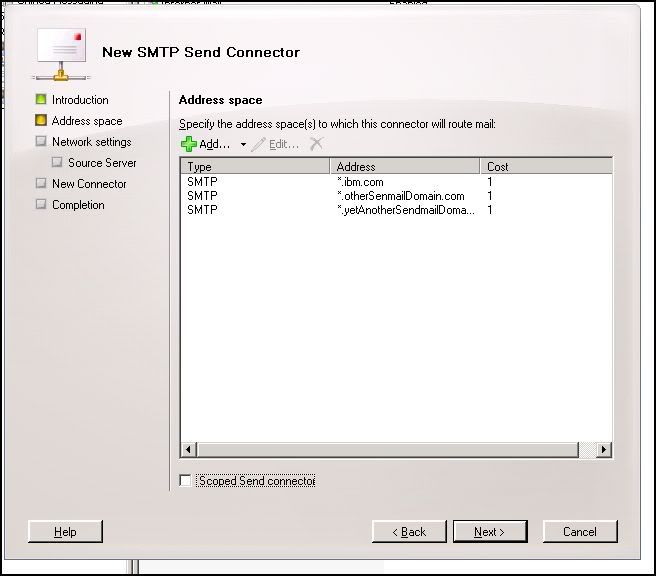
Create a custom send connector that will be used for ibm.com (and other domains that are deemed problematic to this issue) and turn off TLS negotiation for that connector only. Other domains that are found to exhibit the same problem can easily be added to the custom connector via the Exchange Management Console (or through Powershell) when discovered.


Was this helpful? Please leave a comment.
.end

more...